


Changing your subscription in Bookedin
With Bookedin, you can easily change or upgrade your subscription to a plan that better suits your needs. Follow the steps below to complete this process smoothly.
Log in to your account
Go to https://app.bookedin.nl/login/ and log in with your email address and password. After logging in, you will arrive at your dashboard.
Open your profile settings
- checkIn the top right corner of your screen, you will see your profile name.
- checkClick on it and select the Profile option (located between Profile and Logout).
Navigate to the Subscription tab
You are now on your profile page.
Click on the Subscription tab at the top.
Choose a plan
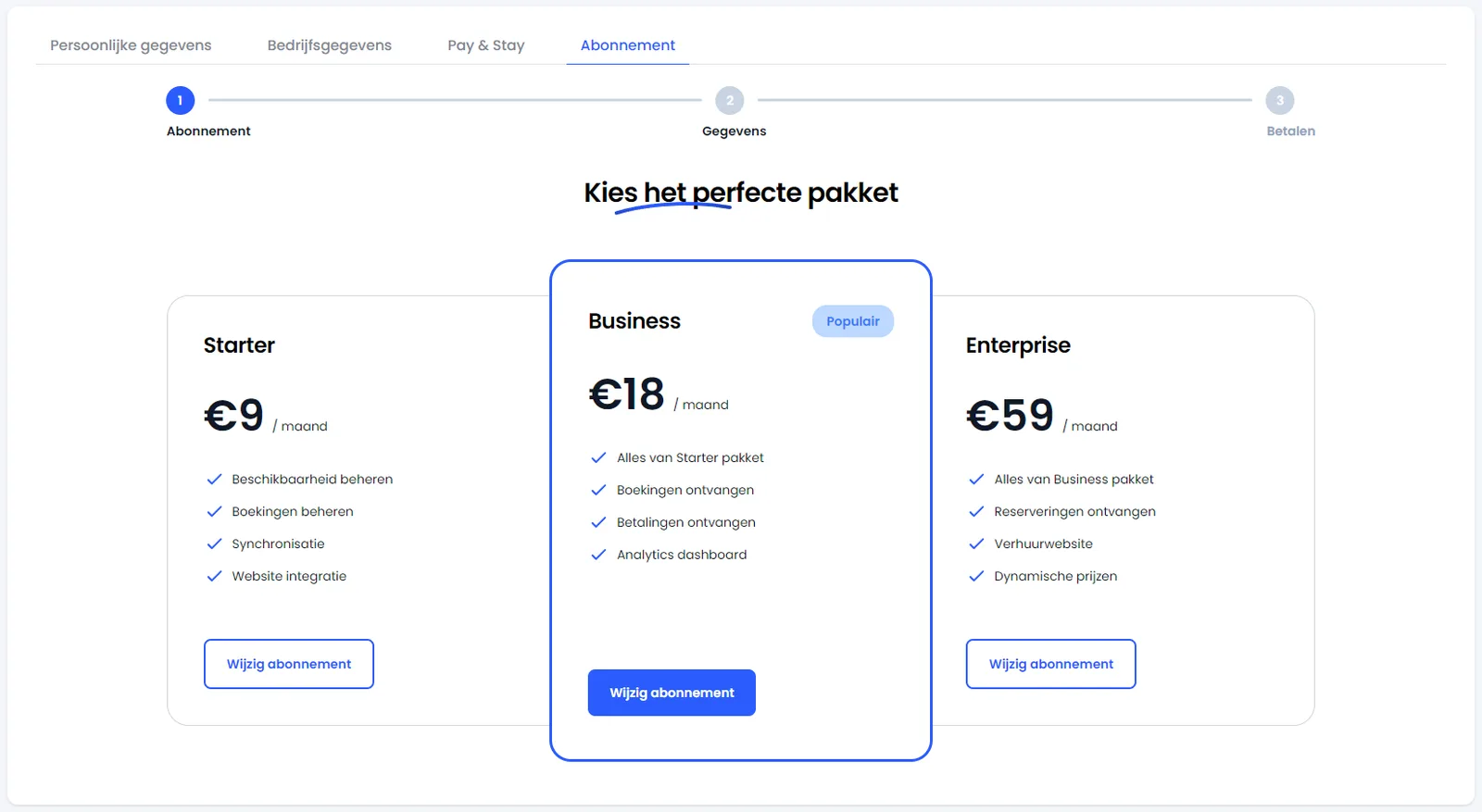
You will now see an overview of the available plans:
- checkStarter
- checkBusiness
- checkEnterprise
Review which plan best fits your requirements and click on your preferred option.
Enter billing and address details
You have reached step 2 of the checkout process. Please fill in the following fields:
- checkBilling details
- checkAddress details
- checkNumber of calendars you wish to purchase (by default, each plan includes 2 calendars).
Finalize subscription
- checkClick the blue button "Finalize subscription" (or: "Complete subscription").
Complete the payment
You will be automatically redirected to the payment page, where you can securely complete your transaction.
All set! Once the payment is successful, your subscription will be updated. You can now start using your new plan immediately.