


Editing your pages
With the Bookedin Enterprise plan, you have your own rental website built in WordPress using Elementor. In addition to blog posts, you can also customize your pages (such as Home, About Us, Contact, Accommodations). Below is a step-by-step guide on how to do this.
1
Log in to your Bookedin WordPress dashboard
- checkGo to the login page of your website: www.yourdomain.com/wp-admin
- checkEnter your username and password.
- checkClick Log In.
- checkYou will now enter the WordPress Dashboard.
2
Locate a page
- checkIn the left-hand menu, click on Pages > All Pages.
- checkYou will see an overview of all the pages on your website.
- checkFind the page you wish to edit (e.g., Home or Contact).
- checkClick the blue button under the page title that says Edit with Elementor.
3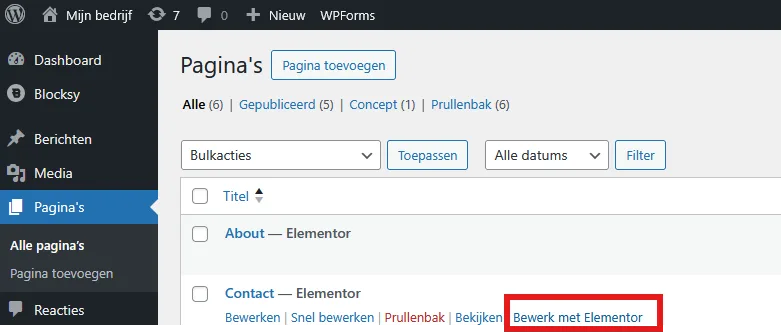
Editing with Elementor
When you open the page with Elementor, you will enter a visual editor.
Adjusting elements:
- checkEdit text: Click on a text box on the page. An editing panel will open on the left where you can modify the text. Use the options for headers, lists, links, or bold text.
- checkReplace images: Click on the image you want to change. Choose Choose Image in the left panel. Upload a new image or select one from the media library.
- checkCustomize buttons: Click on the button you wish to change. Adjust the text, link, and style (color, shape, size).
- checkEdit sections or columns: Click on the edge of a section (blue frame). In the left menu, you can adjust the background color, background image, padding, and layout.
4
Adding new elements
Would you like to add extra components to the page?
- checkClick the widgets menu (grid icon) in the top left of Elementor.
- checkDrag an element (e.g., Heading, Image, Video, Form, Gallery) to the desired location on the page.
- checkConfigure the element using the left editing panel.
5
Save and update the page
- checkAre you happy with your changes?
- checkClick the green "Update" button at the bottom left. Your changes will go live on your website immediately.
6
Check your page
- checkClick Preview Changes (eye icon) at the bottom to check your work.
- checkVerify that everything looks good on desktop, tablet, and mobile.
check_circle
All set!
lightbulb
Always make small adjustments and click Update regularly to prevent losing a lot of work at once.
Was this guide helpful?
Ask support a question