


Drag & drop pricing in Bookedin
With the Drag & drop pricing feature, you can easily drag the prices you have created onto specific days in your calendar. This is a fast and visual way to assign rates to individual days.
Log in to your account
Go to https://app.bookedin.nl/login/ and log in with your credentials. You will arrive directly at your dashboard.
Check if you have a calendar
- checkAlready created a calendar? → Proceed to step 3.
- checkNo calendar yet? → Follow the guide "Make your first calendar" first.
Open the Pricing and Services page
In the menu, click on Plugins → Pricing and Services.
- checkNote: If you haven't created any prices yet, please refer to the guide "Creating prices" first.
View your available prices
Under the heading "Drag & drop your prices into the calendar", you will see all the prices you previously created manually.
- checkEach price category is displayed with its assigned name (e.g., Weekend Price).
- checkEach price shows the corresponding color you have set.
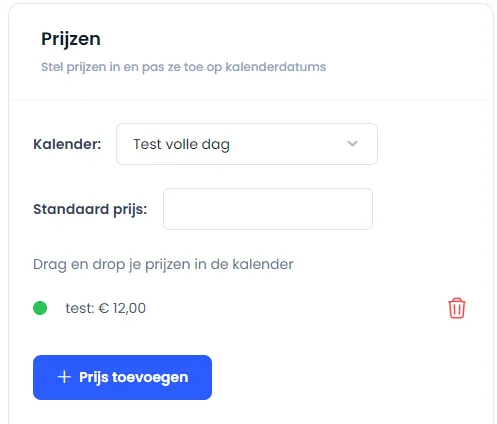
Drag a price to the calendar
Click on a price category with your mouse and drag it to a specific date in the calendar.
- checkExample: Drag "Weekend Price" to Saturday, August 12th.
Automatically saved in the Cloud
As soon as you release the price on the chosen date, it is automatically saved to the calendar.
All set! You have successfully added a price via drag & drop. The rate is immediately visible on the selected date in the calendar.