


Creating prices in Bookedin
With Bookedin, you can easily add prices and services to your availability calendar. This makes the costs associated with a reservation immediately clear to your customers.
Follow the steps below to create your first price:
Log in to your account
Go to https://app.bookedin.nl/login/ and log in with your credentials. After logging in, you will arrive at your dashboard.
Check if you have a calendar
Have you already created your first calendar?
- checkYes → Proceed to step 3.
- checkNo → Follow the guide "Creating your first calendar" first.
Open the Pricing and Services page
In the menu, click on Plugins → Pricing and Services.
You will see your calendar here. If you haven't added any prices yet, it will be empty.
Click on "Add price"
- checkPress the blue button "Add price".
- checkA pop-up will open where you can set up a new price.
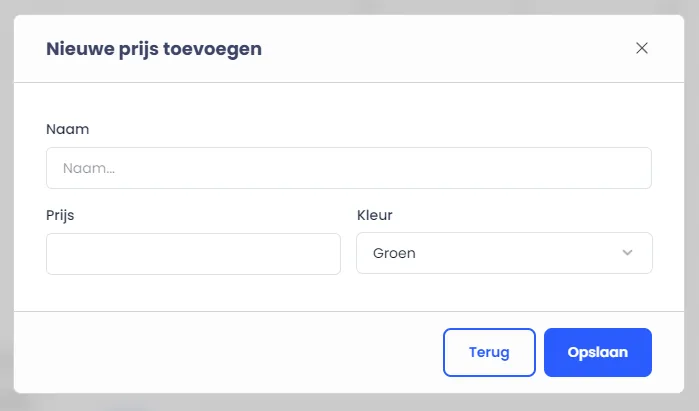
Enter the price details
The pop-up contains three fields:
- checkName → Give your price a recognizable name, e.g., Weekend Price.
- checkPrice → Enter the corresponding amount.
- checkColor → Choose a color so you can easily identify this price in your calendar later.
Then, click the blue button "Save".
All set! You have now created your first price category. From now on, you can use these prices to fill your calendar.
Next steps
Would you like to learn how to fill your calendar with the prices you just created? Check out one of our following guides:
- checkEntering prices
- checkEntering a default price
- checkAdding bulk selection prices
- checkDrag & drop pricing