


Setting a default price in Bookedin
The default price determines which rate is automatically visible in your calendar. This price is shown on all days where no specific price has been added yet. This way, you don’t have to manually enter an amount for every single day.
Log in to your account
Go to https://app.bookedin.nl/login/ and log in with your credentials. After logging in, you will arrive at your dashboard.
Check if you have a calendar
- checkAlready created a calendar? → Proceed to step 3.
- checkNo calendar yet? → Follow the guide "Make your first calendar" first.
Navigate to Pricing and Services
In the menu, click on Plugins → Pricing and Services. You will see your calendar here. If this is the first time you are adding prices, the calendar will be empty.
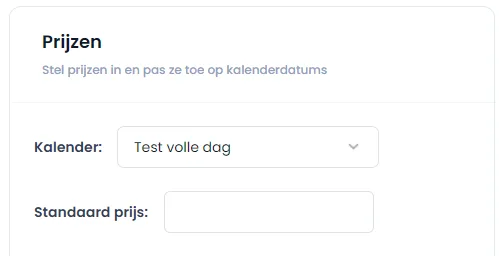
Set your default price
- checkClick on the Default price field at the top of the page.
- checkEnter the amount you want to display as the standard rate on your calendar.
- checkThe default price is saved automatically.
All set! Your default price is now configured and will be applied to the entire calendar. If you add specific prices later (for example, via the bulk selection tool), those will overwrite the default price for those specific dates.