


Setting up a booking form per calendar
In Bookedin, you can set up a unique booking form for each calendar. This allows you to collect exactly the right information from your guests, tailored to your holiday home, camper, boat, or any other rental unit.
Log in to your account
Go to https://app.bookedin.nl/login/ and log in with your credentials. After logging in, you will see the dashboard.
Check if you have a calendar
- checkAlready created a calendar? → Proceed to step 3.
- checkNo calendar yet? → Follow the guide "Make your first calendar" first.
Go to Plugins > Booking Form
In the menu, click on Plugins and navigate to Booking Form. On this page, you will see two columns:
- checkForm settings (left)
- checkBooking form (preview) (right)
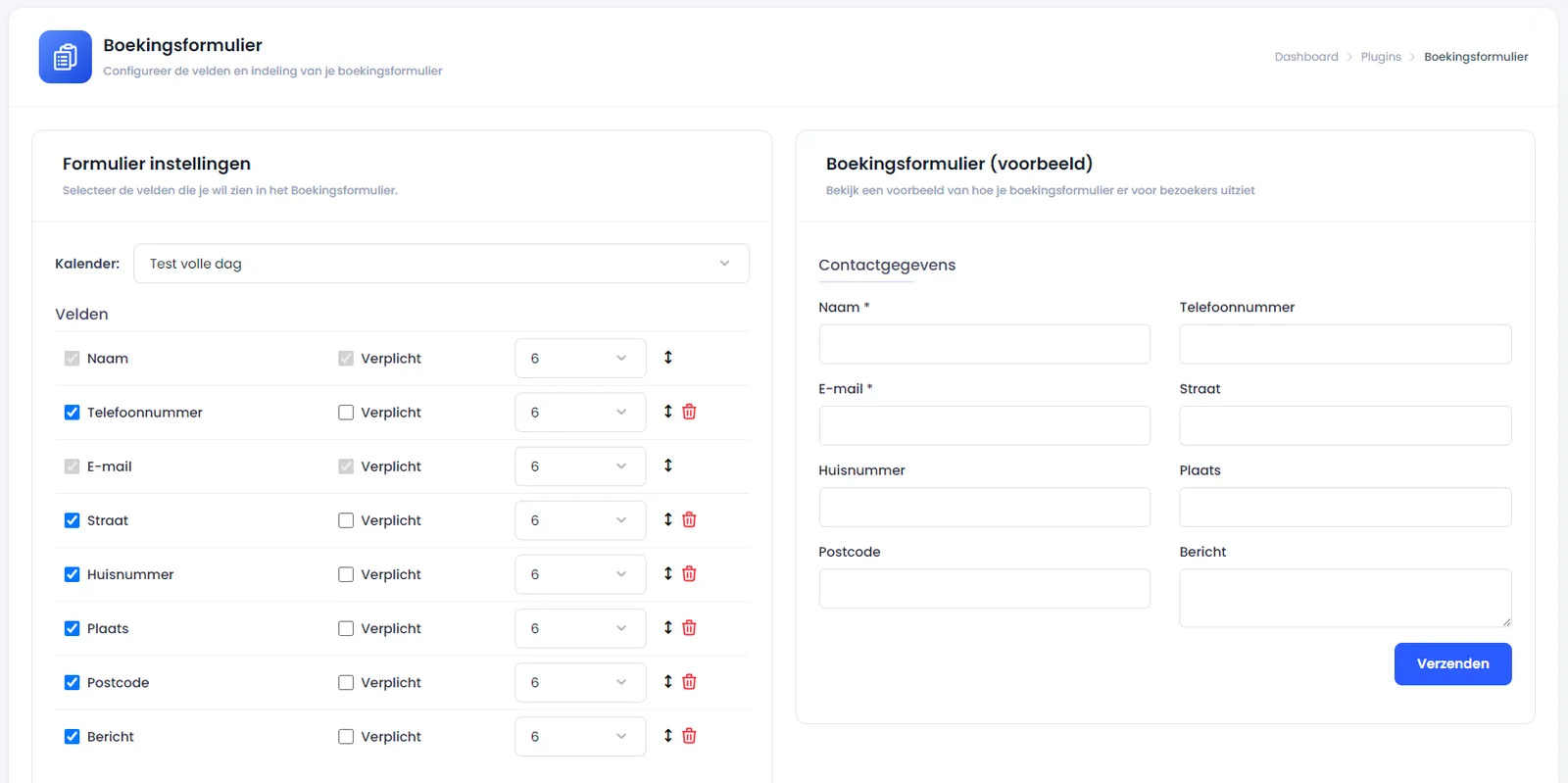
Standard fields
Bookedin automatically generates a booking form for every calendar. The standard fields are:
- checkName
- checkPhone number
- checkEmail
- checkStreet
- checkHouse number
- checkCity
- checkPostal code
- checkMessage You can always supplement or adjust these to your liking.
Select the correct calendar
If you have multiple calendars in your account, you can choose which calendar's form you want to edit:
- checkAt the top of the page, next to the calendar name, you will see a selection field (dropdown).
- checkClick on this selection field.
- checkAn overview of all your created calendars will appear.
- checkClick on the calendar you wish to view or update.
Customize the booking form
Once you have selected the calendar, its unique form will open automatically. From here, you can:
- checkManage the standard fields.
- checkAdd extra fields (see the guide "Adding custom fields").
All set! You have successfully set up the booking form per calendar. Each calendar now has its own unique form that you can configure exactly as you wish.