


Posting a blog article
With the Bookedin Enterprise plan, you receive your own rental website. This website is built in WordPress and edited with Elementor, making it easy for you to post and manage your own blog articles.
A blog is the perfect way to:
- checkInform your guests.
- checkGain extra visibility in Google (SEO).
- checkShare tips and inspiration regarding your rental property and the surrounding area.
Follow the steps below to post a blog article yourself:
1
Log in to your Bookedin WordPress dashboard
- checkGo to the login page of your website: www.yourdomain.com/wp-admin
- checkEnter your username and password.
- checkClick Log In.
- checkYou will now enter the WordPress Dashboard.
2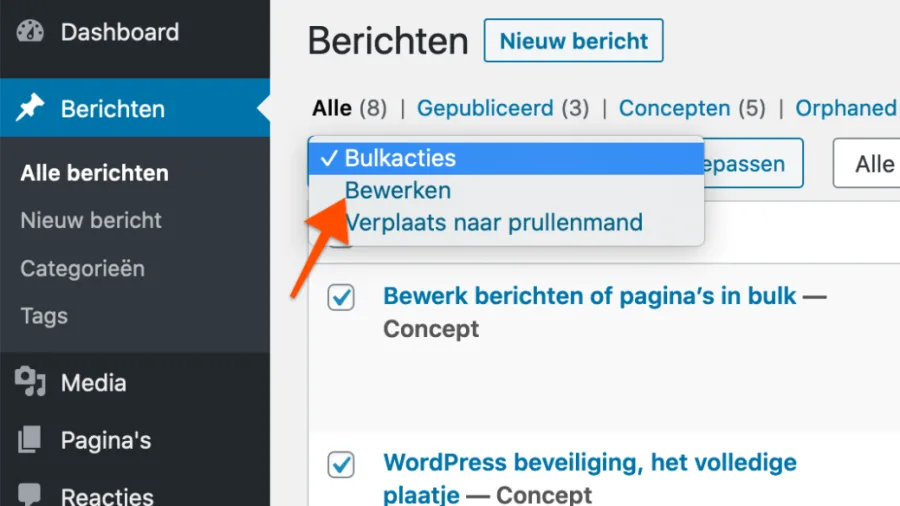
Create a new blog article
- checkIn the left-hand menu, click on Posts > Add New.
- checkA blank article will open in the editor.
3
Set the Title and Permalink
- checkEnter a title for your blog article at the top (e.g., "5 tips for a perfect holiday in Zeeland").
- checkThe permalink (URL) is generated automatically. Ensure it is short and clear.
4
Add text and content
- checkYou can start writing directly in the main text area.
- checkUse headings (Heading 2, Heading 3) to make your article easy to read.
- checkAdd text, images, and videos if necessary.
5
Edit with Elementor (optional, for more design options)
- checkClick the blue button Edit with Elementor.
- checkYou will enter the visual editor where you can add blocks, such as:
• Images
• Text blocks
• Columns or sections
• Buttons (e.g., "Book Now") - checkDrag the desired elements into your article and customize them to your style.
6
Add images and a Featured Image
- checkIn the right sidebar, scroll down to Featured Image and click Set featured image.
- checkUpload or choose a suitable image that will appear in the blog overview.
- checkYou can also insert extra images within the text using the Add Media button.
7
Set Categories and Tags
- checkIn the right sidebar, you can assign your article to a category (e.g., News, Tips, Inspiration).
- checkAdd tags (e.g., holiday, beach, pets welcome) to improve searchability.
8
Publish the article
- checkAre you satisfied with the content and layout?
- checkClick the blue Publish button in the top right corner.
- checkYour article is now live on your website!
9
View your blog article
- checkClick View Post to see your article as visitors will see it.
- checkShare the link on social media or in your newsletter to attract more readers.
check_circle
All set!
lightbulb
Post new articles regularly (at least once a month) to improve your Google ranking and keep inspiring your guests.
Was this guide helpful?
Ask support a question