


Add an availability calendar to your own website
With the Bookedin availability calendar, you can show visitors exactly when you are available and allow them to easily book an appointment or reservation online. In just a few clicks, you can fully customize the calendar to match the style of your website. Below, you’ll find instructions on how to add and edit your calendar.
How do I place the calendar on my website?
You can add the Bookedin calendar to your website in one way: using an iFrame, which allows you to place the calendar anywhere you like. The calendar will then automatically scale to fit the height and width of your page.
Are you using an HTML website? Follow the steps below to place the calendar using HTML code.
Adding the availability calendar via HTML code
Follow these steps to easily integrate the Bookedin calendar into your website:
- 1
- 2Create your first calendar; you will now receive your iFrame code.
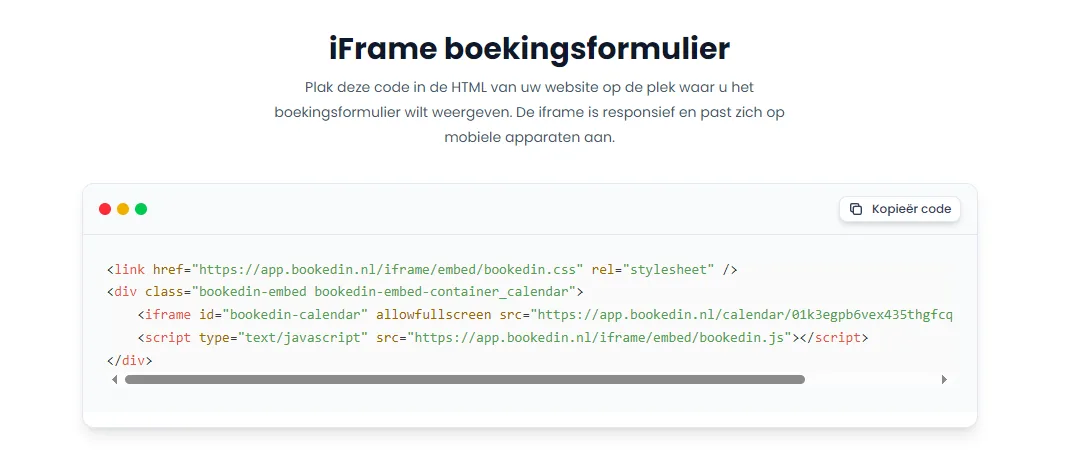
- 3Copy the embed code (the widget code) for your calendar.
- 4Paste the code into your website's source code at the location where you want the calendar to appear.
- 5Save the changes to your website.
And you're all set! The availability calendar is now live on your website, and visitors can start scheduling appointments immediately.